Return Authorization - Job Aid
Print
Modified on: Fri, Jul 15, 2022 at 10:46 AM
TABLE OF CONTENTS
# | Step in Process/Image |
1 | Overview- Use when we are processing a refund and items are being returned
- Generally speaking, we will require items back if:
- If the sell price of the item is $30 or more.
- Customer must notify JPP’s customer service department within thirty (30) days of the invoice date
- Look up the original order in Detail Sales to see what happened
- Determine if a replacement order is needed
- If Yes, enter a replacement order before entering the processing the credit memo (LINK TO REPLACEMENT ORDER JOB AID)
- If no, proceed with steps below
- If items are damaged, lost or defective
- If damaged/defective, kindly ask if the customer would be willing to email photos of the damage for our quality control efforts. If time-sensitive, do not wait for processing a replacement, the customer can email in photos afterwards.
- Once photos are received, upload them into S2K's document storage for that Credit Memo
|
2
| Navigate to "Order Entry" |
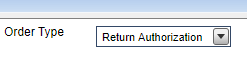
Follow steps to enter a new order: - Change the Order Type to “Return Authorization”
- Change Order Source code as needed

- Populate "Customer P.O. No" field with RA [Invoice"]
- Ex: RA 1234567
- If the order has not yet invoiced, use “RA WO Order Number”

- Choose accurate contact

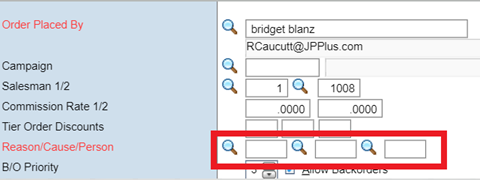
- Fill in Reason/ Cause/ Person with appropriate codes
- Verify Terms and change as necessary.
- Use "3 Criteria" to determine if we need to change the terms to terms 23
- Click here to see 3 Criteria Job Aid
- Hit Enter or Click Accept to proceed.
|
3
| Body of Order |
- Populate quantity, item number, UOM, price, and location fields
- Location and price must match the previous order / or the closest stocking location

- Proceed to the summary page by clicking on "End RA"
|
4 | Summary Page |
- If, applicable charge a restocking fee
- See "Charging a Restocking Fee..." Job Aid for guidelines and instructions)
- Add Notes
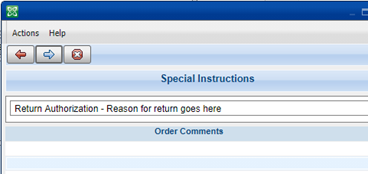
- Special Instructions (Comments) – explain what happened. Comments visible to Cx and the warehouse
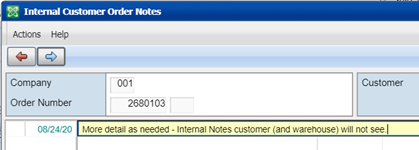
- Internal details as needed in Ext Notes, such as number of labels needed.
- Email confirmation to the customer
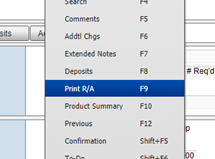
 - Print/Email the R/A (Order must be in A status)
- Right click and click “Print R/A”
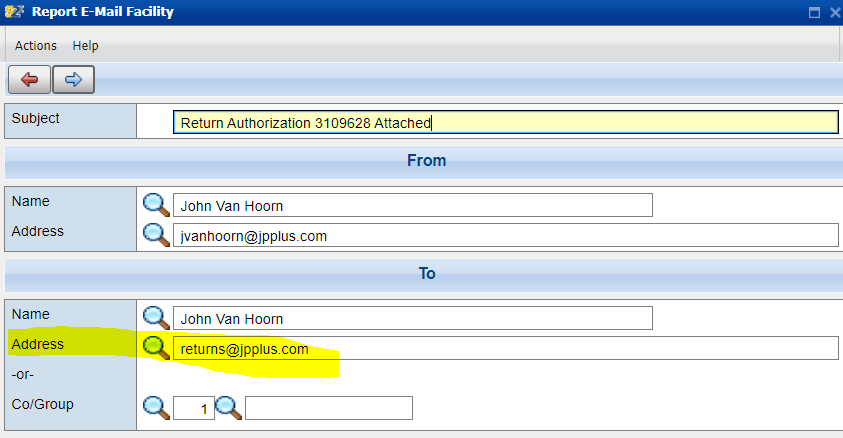
- Check “Email” and Blue Arrow forward

- Enter to Email address as “RETURNS@JPPLUS.COM”
- Notify the customer that they will receive the Return Label via email from UPS direct
|
| 5 | When the product is returned- The warehouse receives and inspects the return
- The warehouse puts items back into inventory (if resellable)
- The Returns Coordinator will bill the RA within 24 hours or its receipt
- TABLE OF CONTENTS
|
Did you find it helpful?
Yes
No
Send feedback Sorry we couldn't be helpful. Help us improve this article with your feedback.