
The following article explains how to enter a replacement order in S2K
Order Entry Header Page
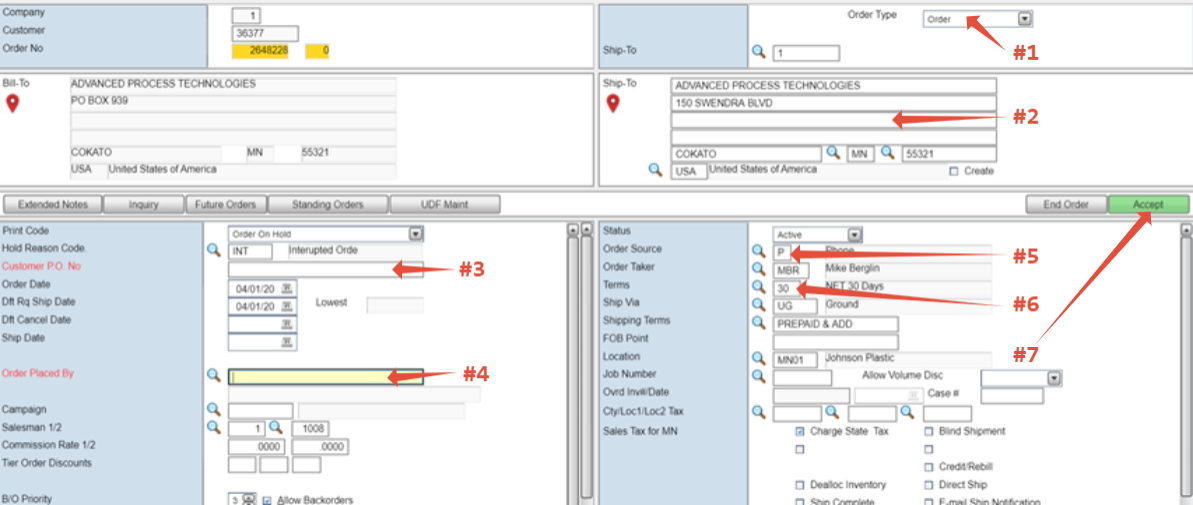
- Confirm Order Type
- Confirm ship to (click on the link below for additional information)
- Enter Customer PO
- PO will be “REP Previous Invoice Number” (ex. REP 1234567)

- If the original order has not invoiced, use “REP WO Order Number”
- Enter order placed by
- Enter order source
- Verify Terms and change as necessary.
- Use "3 Criteria" to determine if we need to change the terms to terms 23
- Click "Accept" to go to the next screen (Order Entry/Update Screen )
Order Entry/Update Screen (Body of the Order)
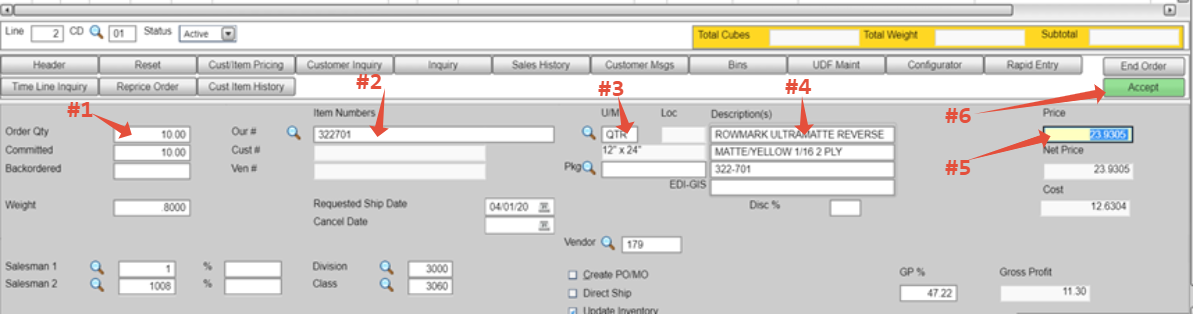
- Enter the quantity
- Enter the Part Number
- Enter the "U/M"
- Search this field to see available units of measure
- Confirm description
- Confirm Price
- Click Accept
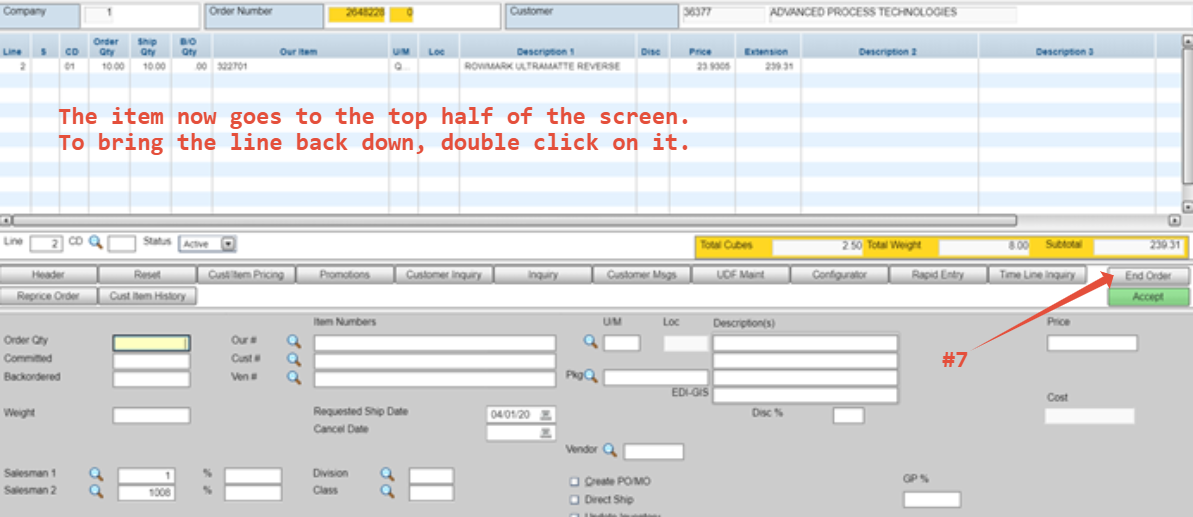
- Once item(s) are all entered, click "End Order"
Order Entry Advising Screen
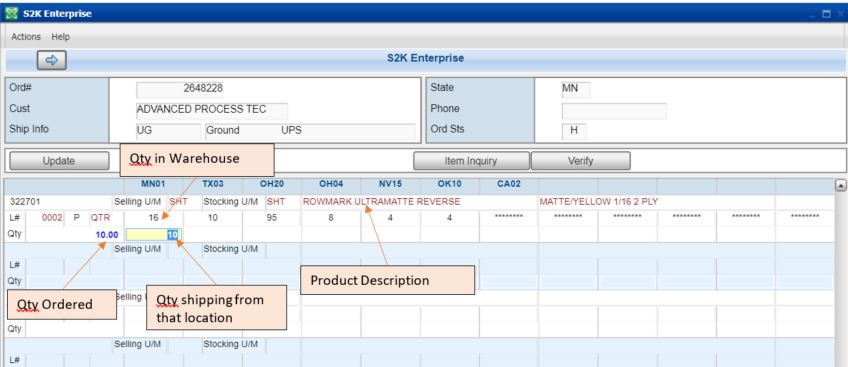
- To change the shipping location of the item:
- Delete the amount in the current field and re-enter it in the shipping qty field of the new location
- -OR- Highlight the quantity and drag it to the correct warehouse
- Click the "Update" button to advance to the next screen (Left side of the screen toward the middle)
Freight Estimate Screen
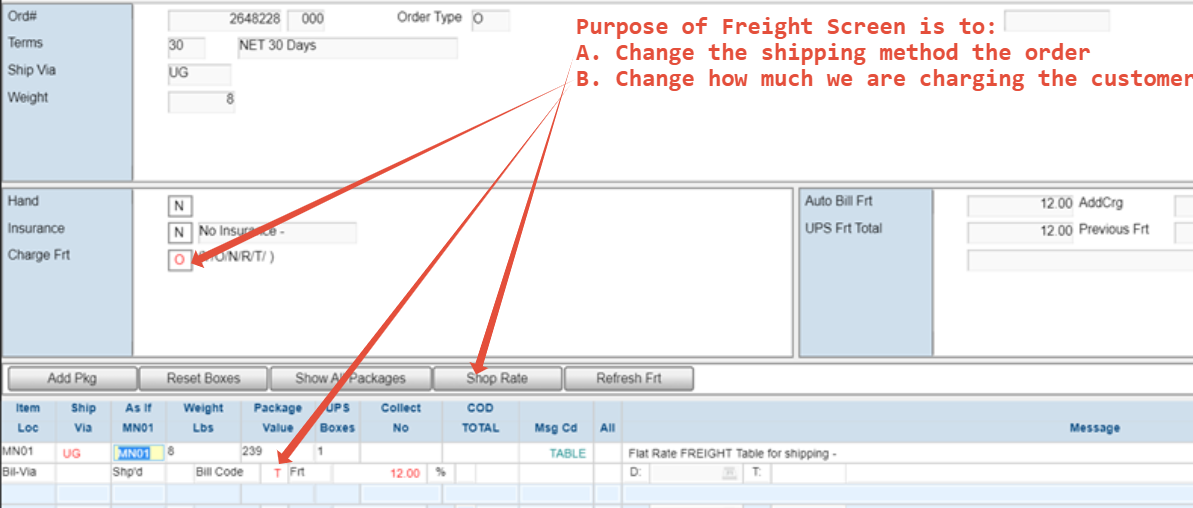
Freight Estimate Screen – How to change the shipping method
- If you don't need to change the shipping method, Press "Enter" to advance to the next screen
- If you need to change the shipping method, follow the steps below.
- Click on the Shop Rate Button
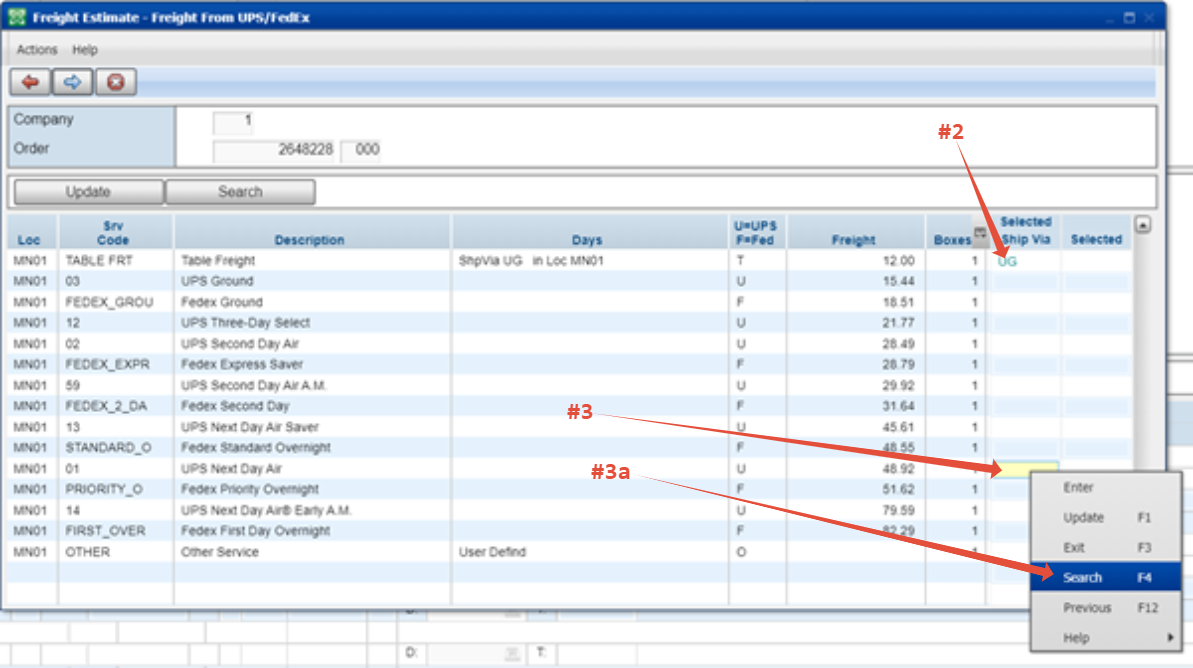
- Delete current ship method
- Search on the ship via field you want to change to
- Right Click and Select Search
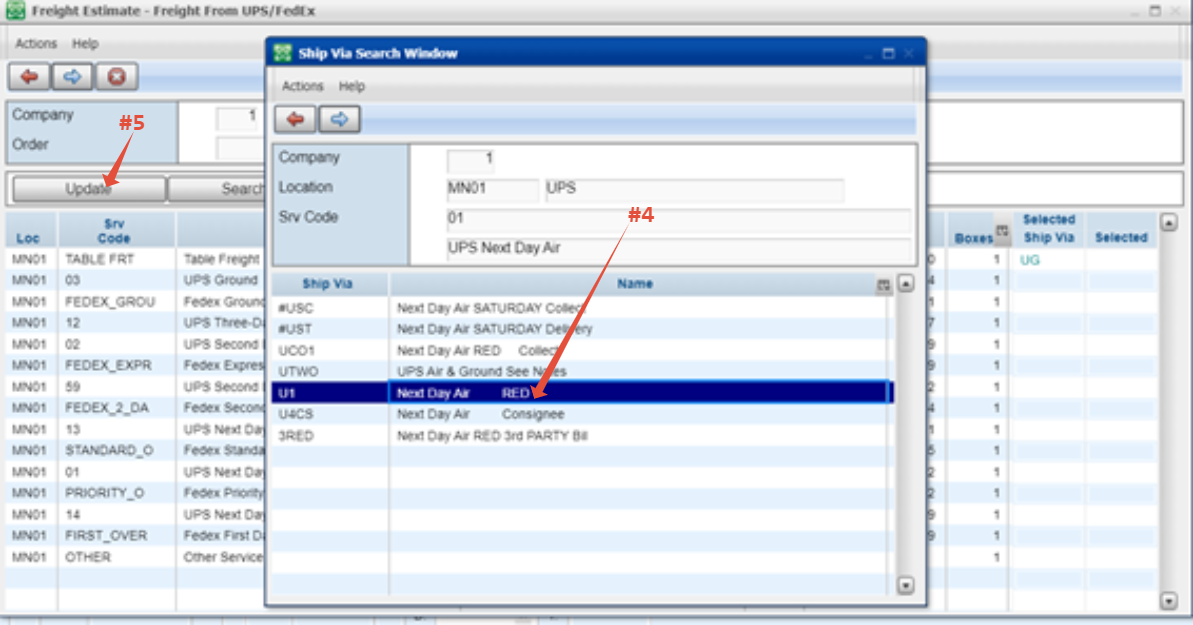
- Click on the correct shipping method and press enter
- After “Ship Via Search Window” closes click “Update”
Press Enter to leave freight screen (after “Shop Rate” window closes)
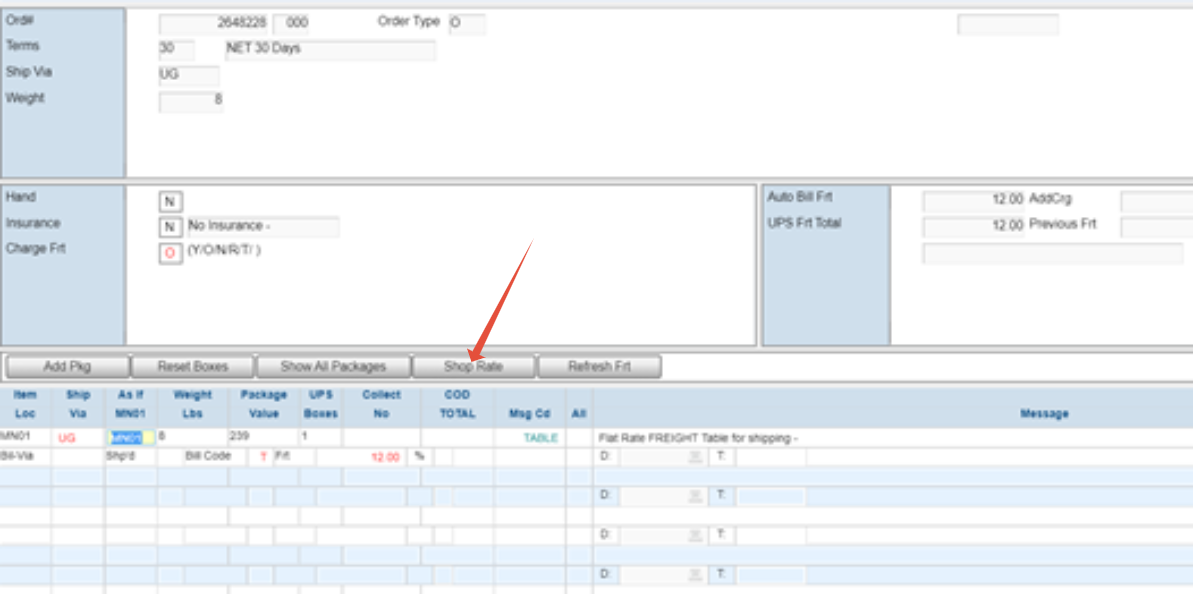
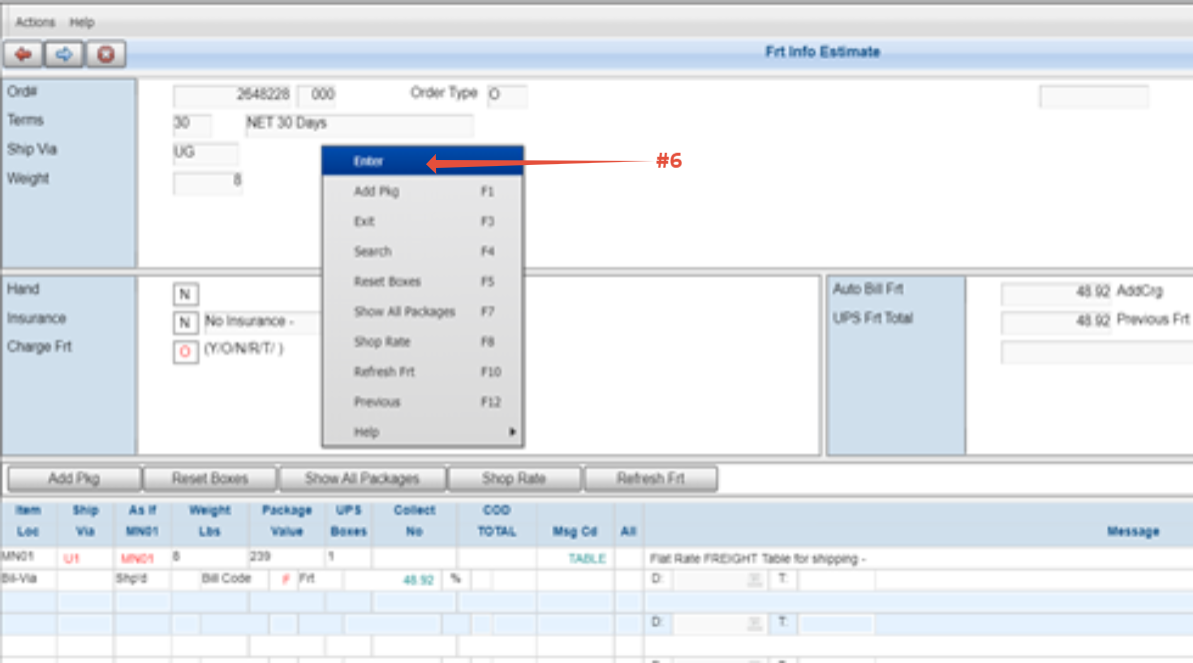
Freight Estimate Screen – How to override shipping costs
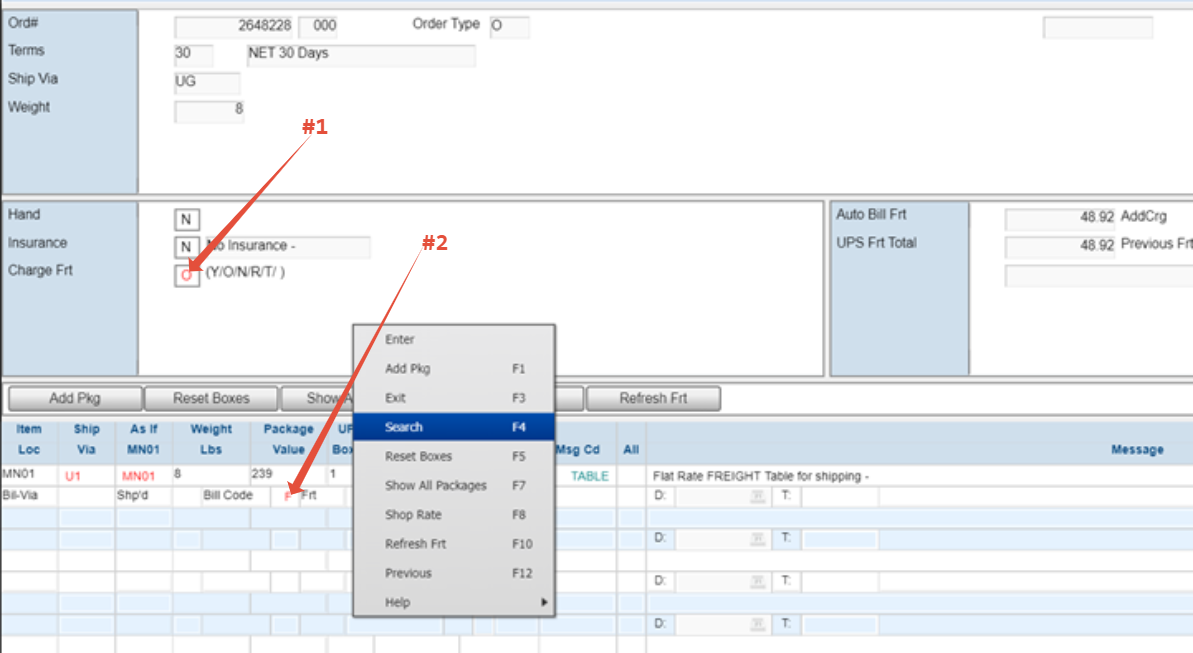
- Change “Charge Frt” field to “O”
- Update the “Bill Code” field to "C" (Cost Freight)
- Click on field and press F4

C – Cost Freight (charge $0)
- *** If split-shipping, each location needs a bill code (see below)
Order Entry – Summary Page

- Communicate special instructions in the “Comments” box. These comments appear on confirmations, orders, credits, returns, and invoices and are visible to customers.
- Add internal order notes if necessary
- Ext Notes are for internal use.
- They communicate order details or changes that were made to others
- Email confirmation to the customer
- Run credit card, if terms are credit card(Click on links below for additional instruction)
- Take order off Hold to proceed
*If you need to leave the order on hold, change to a different code (the hold reason code is searchable)